

What this tool actually does
A Halloween costume generator is not a shopping tool. It does not put a real garment on your body, and it does not tell you whether the costume will fit. It creates a preview image: your face, a new outfit, a new scene, and a lighting setup that makes the whole thing look photographed.
That preview is useful in three situations. You want to see whether a silhouette suits you before you buy it. You want a Halloween post but do not own the costume. You are building a character and need a consistent look for a profile, a thumbnail or a short video.
The workflow is image-to-image, not text-to-image. You upload a photo, and the model edits it. The prompt tells the model what to preserve and what to replace. If you skip the upload, you get a generated person who is not you.
Five tested looks
The presets below are not random style labels. Each one has a full prompt behind it, and the prompt is pre-filled when you choose the card. The look is a starting point; the text box is editable.
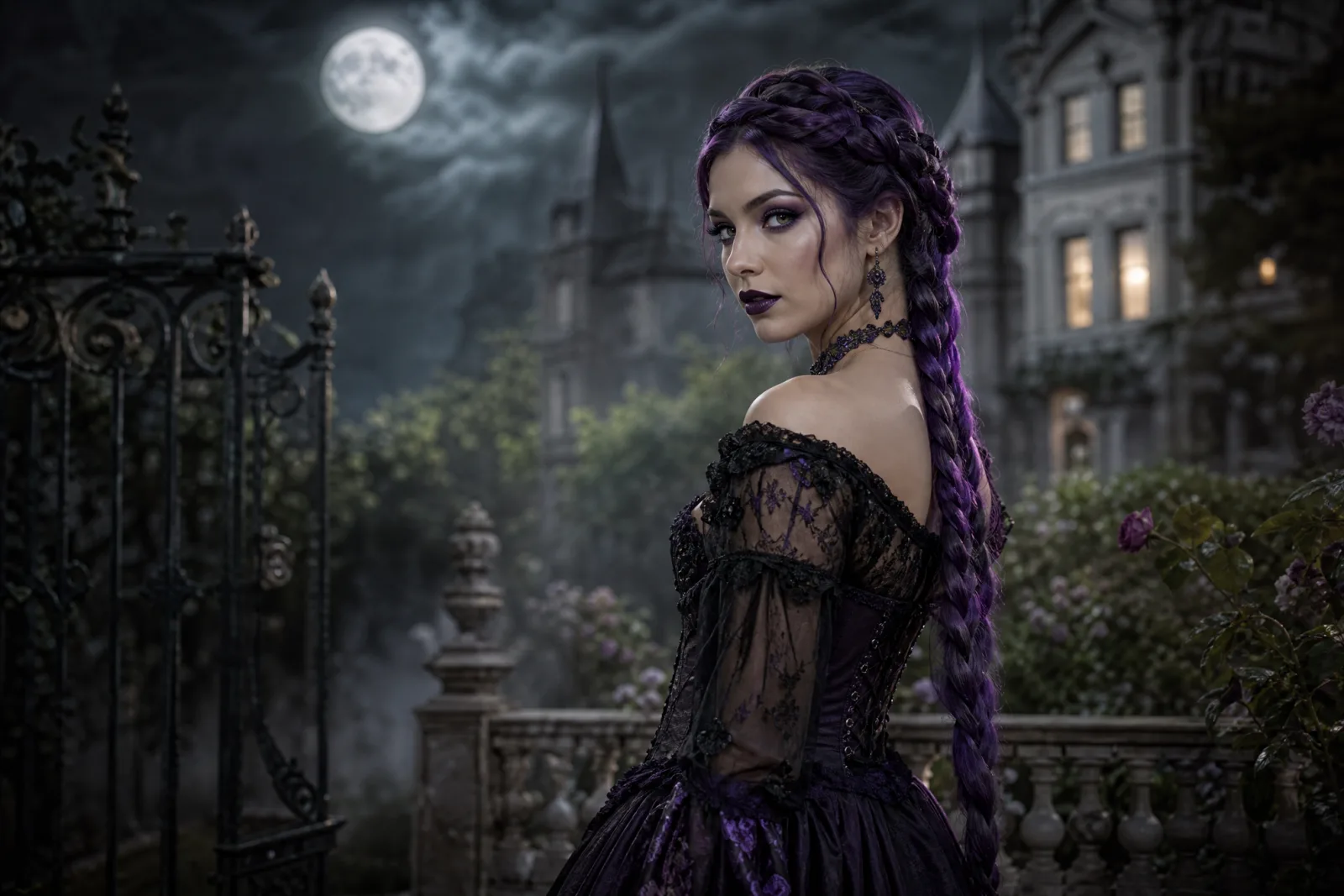
Midnight Braids
Violet braids, black lace and a moonlit Victorian garden.
Try this look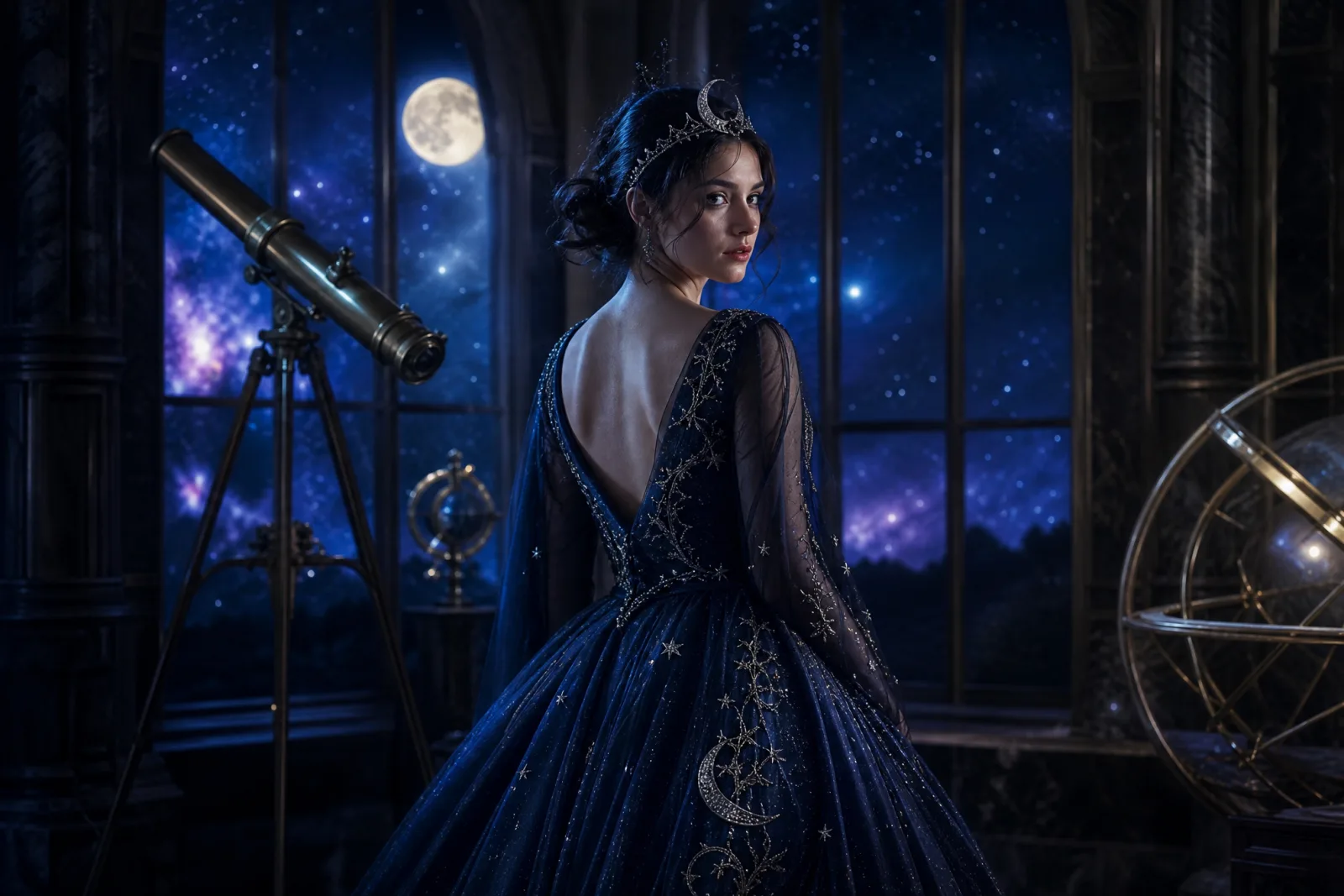
Cosmic Princess
A midnight-blue gown, silver crown and a starry observatory.
Try this look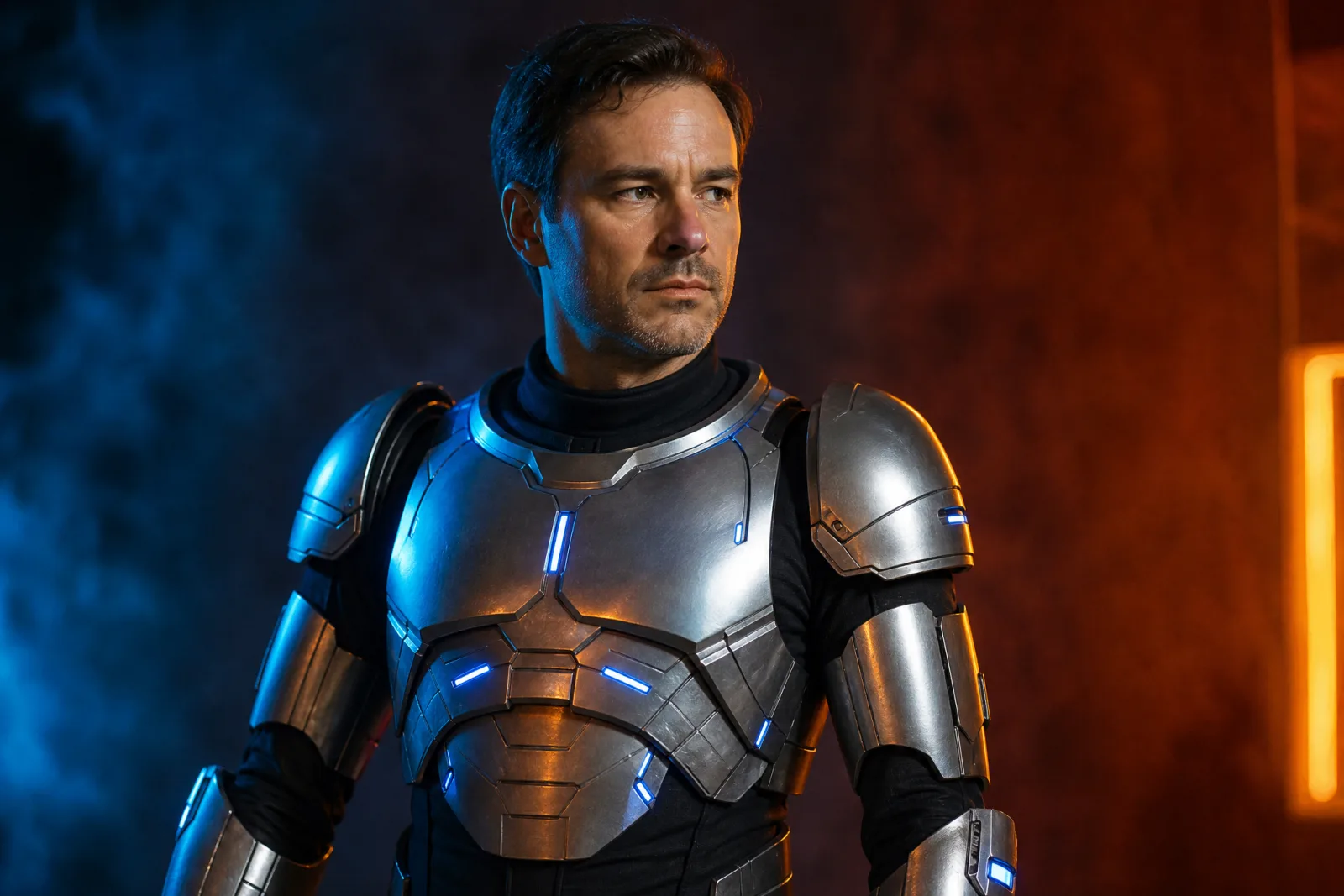
Wearable Robot
Metal panels and LED accents on a human face.
Try this look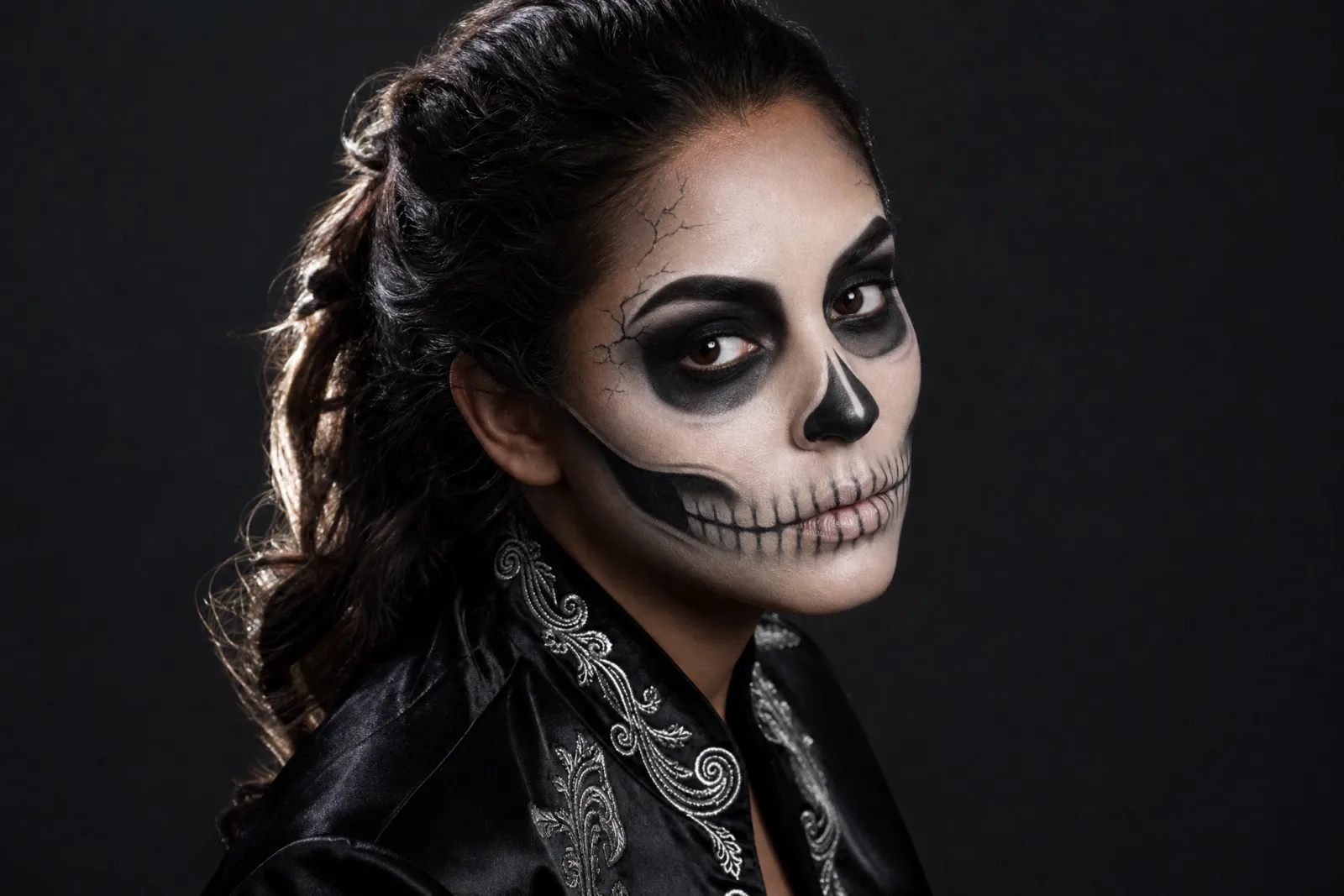
Skeleton Glam
Graphic skeleton makeup that still reads as a human face.
Try this look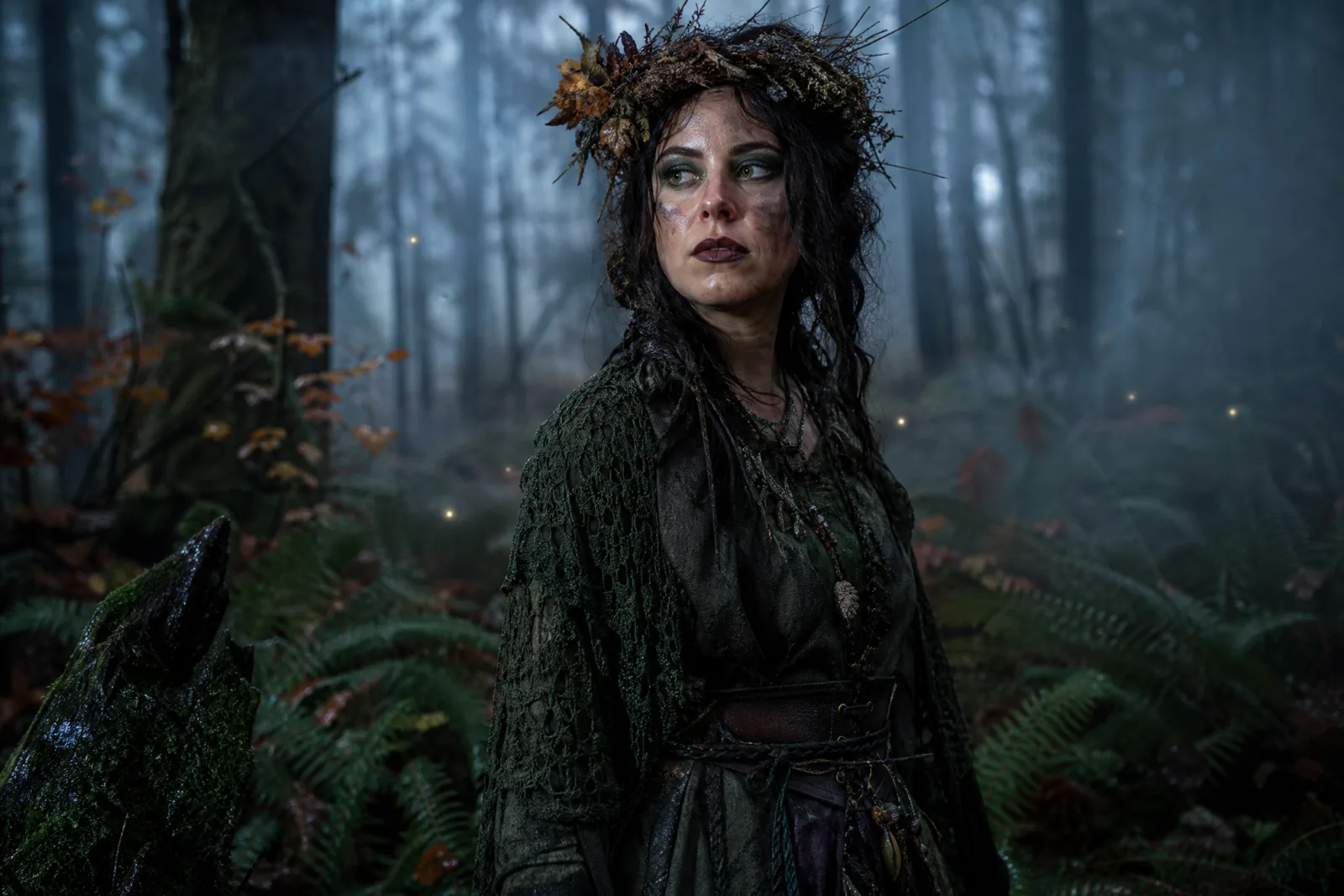
Forest Witch
Moss-green layers, twig crown and a damp autumn forest.
Try this lookMidnight Braids is the safest first run: a dark, fabric-heavy costume with a clear silhouette and a background that does not compete with the face. Cosmic Princess is the most stylized; the glowing fabric and star field give the model more to render, so expect more variation. Wearable Robot is the hardest to keep believable, because the model must add armor without replacing the head. Skeleton Glam and Forest Witch are makeup-led looks; the clothing is simpler, so the face gets more attention.
The prompt that keeps your face
A costume prompt works when it assigns jobs to five parts of the image:
- Preserve. Name the face, facial proportions, skin tone, approximate age and natural anatomy. Say "keep the same number of people" if the source has more than one.
- Change. Describe the hairstyle, the garment, the fabric and the accessories. Be specific about color and material.
- Place. Describe the scene in one sentence. A moonlit garden, a starry observatory, a foggy carnival.
- Light. Name the photography style and the light direction. "Photorealistic editorial photography, cinematic soft lighting" is enough.
- Avoid. List the failures you have seen: altered identity, extra limbs, duplicated fingers, distorted anatomy, text, logos, watermarks.
The order matters less than the completeness. A prompt that says "make me a witch" leaves the model to invent the face, the costume and the scene. A prompt that says what to keep and what to change gives it a contract.
How to take the reference photo
- Face the camera. A slight angle is fine; a profile is not.
- Use even light. Stand near a window or in open shade. Avoid a single hard lamp on one side.
- Keep the eyes visible. No sunglasses, no deep hat shadow.
- Use one person. For a couple, build one side-by-side reference image instead of uploading two separate files in one run.
- Use the original file. A compressed screenshot loses the skin texture the model needs.
A plain background helps, but it is not mandatory. The model can replace a living room with a Victorian garden. What it cannot recover is a blurred face or an eye that is completely in shadow.
Step by step
- Pick a preset above the prompt. The prompt box fills with the full recipe.
- Continue to the image generator. Upload your photo in the image-to-image tab.
- Check the model. The default image lane is enough for a first test; switch models only after you have a result you want to improve.
- Generate one image and inspect the face first, then the hands, then the background.
- If the face drifts, remove any sentence that describes a different person and add "preserve the subject's recognizable facial identity" near the start.
- If the costume is right but the scene is wrong, change only the scene sentence and run again.
- Download the result. The prompt stays with the page so you can reproduce the look later.
What can go wrong
Identity drift. The model reconstructs the face from the reference. It can change the nose, the jawline or the apparent age, especially when the prompt asks for heavy makeup. Keep the identity sentence first and the costume second.
Hands and accessories. Fingers, jewelry and thin straps are common failure points. If a hand is visible in the source, either crop it out or accept that it may need a second run. A costume with long sleeves and no handheld props is easier.
Costume substitution. The model may replace a specific garment with something similar. That is usually fine for a preview, but it means the image is not a guarantee of what a real costume will look like.
Background takeover. A very bright or busy background can pull attention from the face. Ask for a darker scene or a shallow depth of field.
Cost and iteration
An image run on the default lane costs 8 credits. The 100-credit Starter pack is $9.90, so it covers about twelve runs. Credits do not expire, and the pack does not create a subscription. The pricing page shows every lane.
Budget for iteration rather than perfection. Three runs with one change each will teach you more than ten runs with the same prompt. If you plan to make a family set, generate the strongest look first, then reuse its prompt structure for the other people.
When to use the photo editor instead
Use the Halloween photo editor when the photo itself is good and you only want to change one thing: the costume, the makeup, the background or the light. Use this costume generator when you want a full character rebuild. The difference is scope, not quality.
When the still is finished, the AI Halloween video generator can add a five-second motion pass. Keep the movement small: a head turn, drifting fog, a slow push-in. The video model is a separate billed task, and the workbench shows its per-second cost before you submit.
For the rest of the collection, including pet, couple, makeup and robot looks, open the Halloween hub.